


About events on Changemakers for Children
Every once in a while, you will receive notifications about new events created on Changemakers for Children. We use the events function to host events on the platform and promote external events related to the sector and our communities.
You are welcome to promote events from your organisation and any other interesting face-to-face and online events and opportunities you come across. Here's a step-by-step guide. Feel free to contact us if you have any questions.
Creating a new event
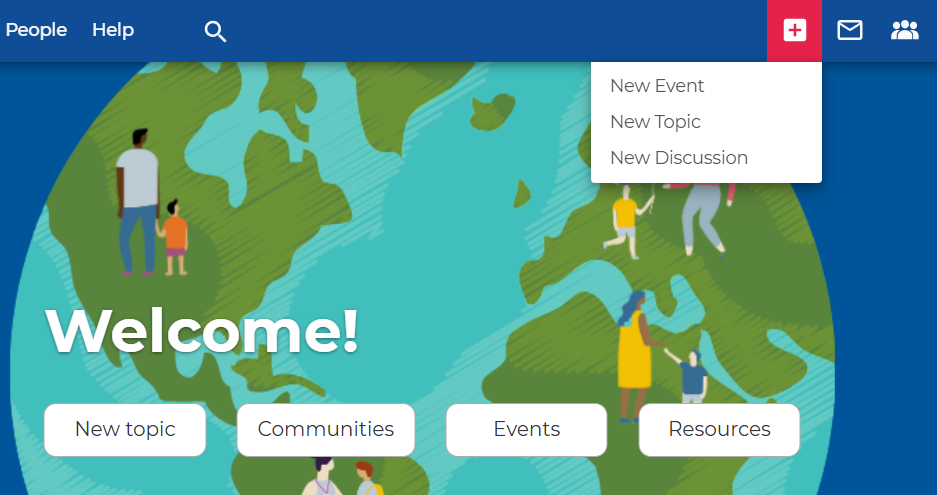
To create a new event, click '+' and 'New Event'. You will be redirected to a new page where you can fill in the event details.
Event general information
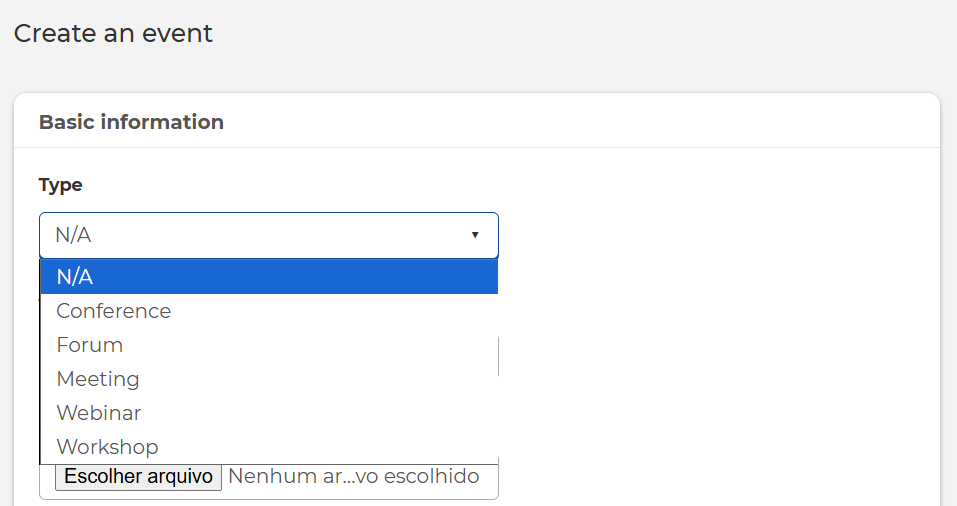
Select the event type from the 'Type' field. If you don't select an event type, the event page will have a generic 'event' label. An event title is mandatory.
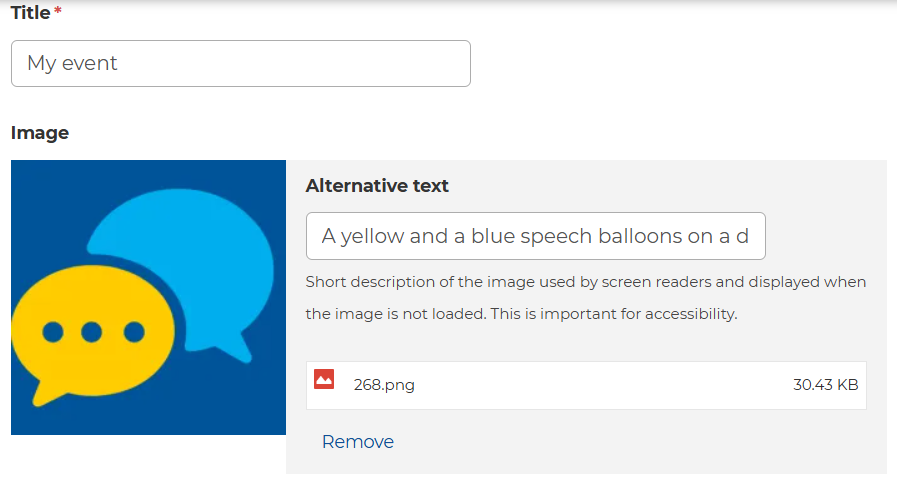
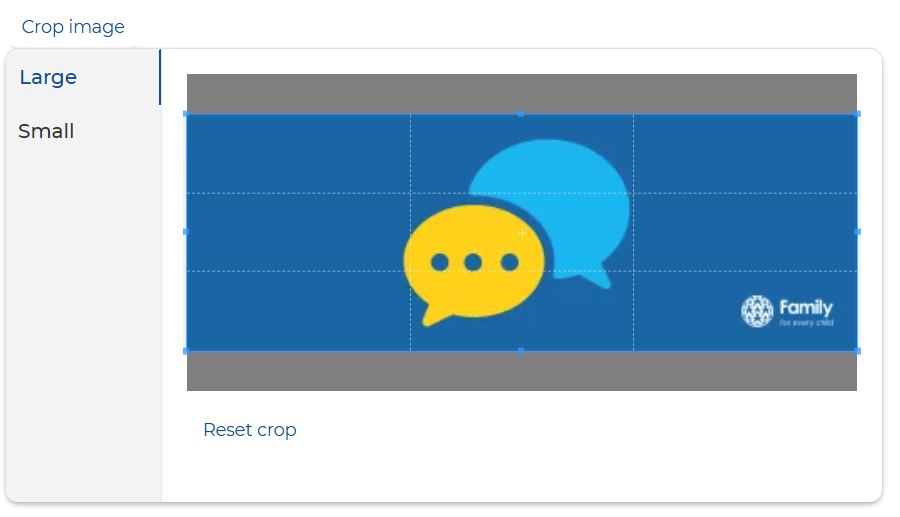
You can add a banner image to your event page, but that's optional. The recommended resolution for event banner images is 1200 x 423 or higher. If you choose an image with a different format, the platform will automatically crop the image. You can adjust the image cropping as you wish.
Adding an event description
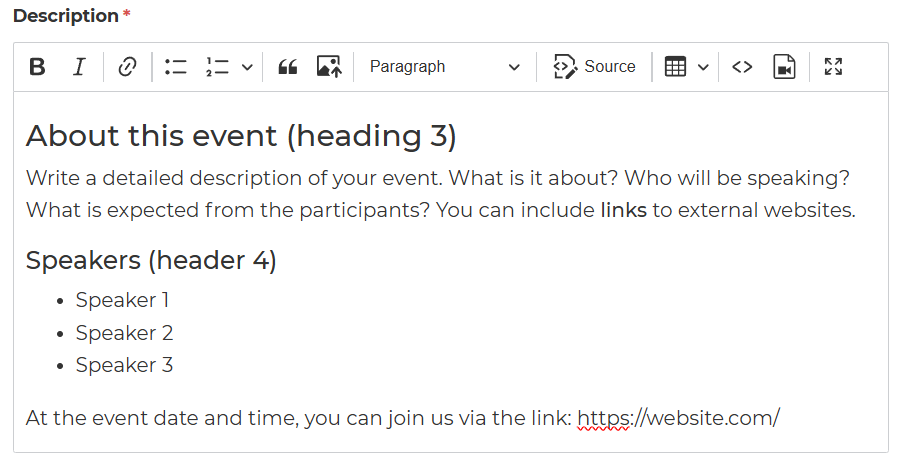
Adding a description is mandatory. You can include all the details about your event, its theme, speakers, interpretation, images, videos and links to external websites. The text editor allows you to choose different text formats and styles.
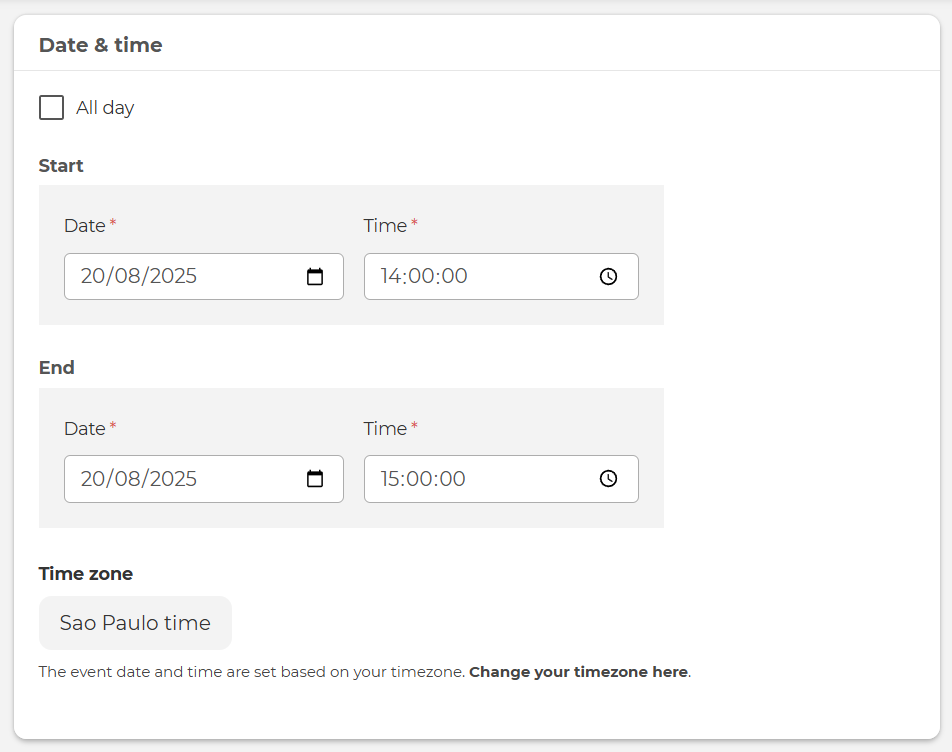
Add a date and time to your event
Changemakers for Children's default time zone is UTC. The time displayed to each platform user depends on their account settings. You can change your time zone by managing your account settings.
Event location
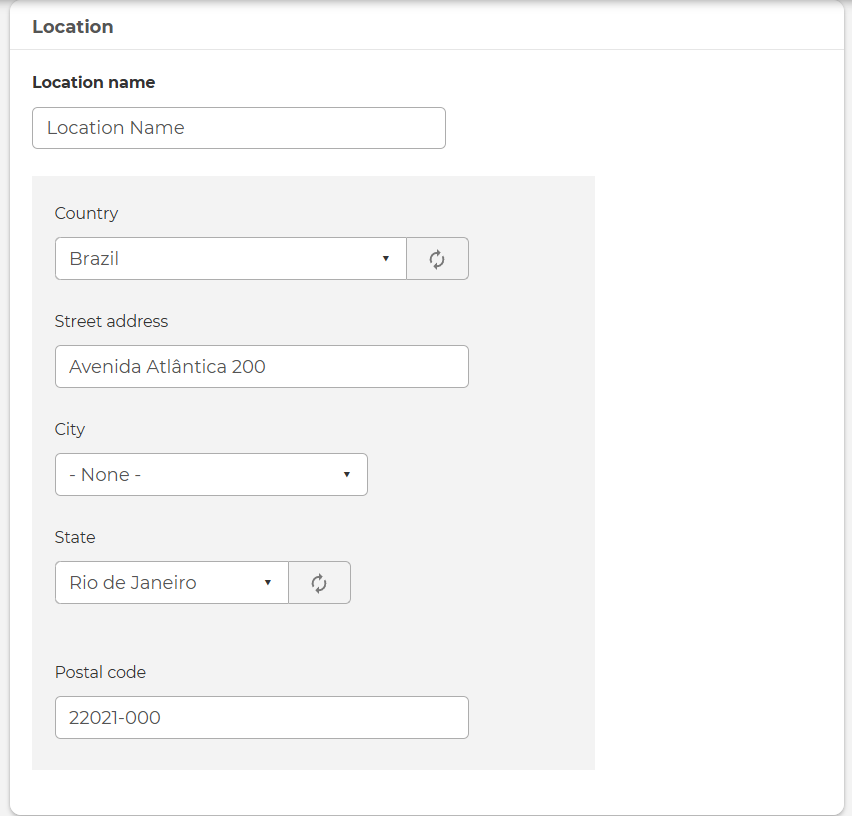
If you are promoting an in-person event, include the name of the venue and the address in the 'Location' box. Once the event is published, the location will be displayed on a map. If your event is online, we recommend that you either add 'Online', 'Zoom', or share the link to register or join the event in the 'Location name' field.
Adding your event to a group
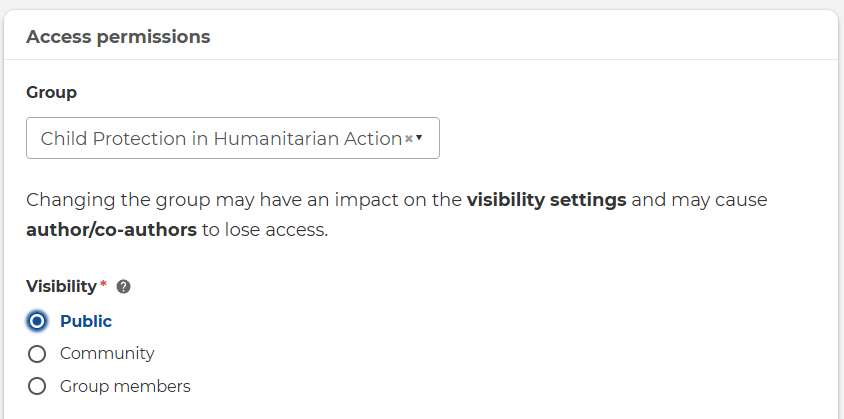
Whenever possible, add your event to a group. This will notify the members of that group. If you don't add your event to a group, people won't get a notification, but your event will still appear on the platform's main feed and the 'Events' page.
Please note that each group has its own particular visibility settings. If you choose 'Community' as a visibility setting, your event will be visible outside that group. If you select 'Public', your event page will be visible to visitors who don't have a Changemakers account, and you will be able to share that page externally.
Enrolment settings
Check 'Enable event enrollment' if you want to manage event registrations through Changemakers for Children. If you select 'Community' as the visibility type, you can allow users outside a group to enrol in your event. Similarly, you can allow platform visitors to enrol without a Changemakers account, which will only work if you choose 'Public' as the visibility type. We recommend enabling 'sending a confirmation email when a member enrols in an event' to improve user experience.
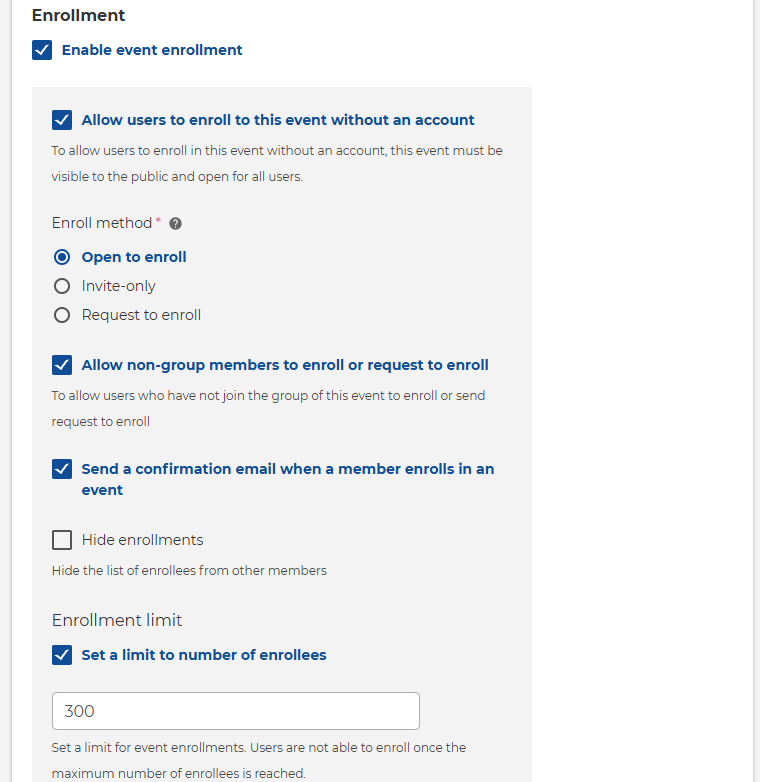
If you decide to manage event registrations externally (e.g., using Google Forms, Zoom webforms, Eventbrite, or your website), you should disable event enrolment to avoid confusion. Don't worry if you forget; we'll do that for you.
Tags
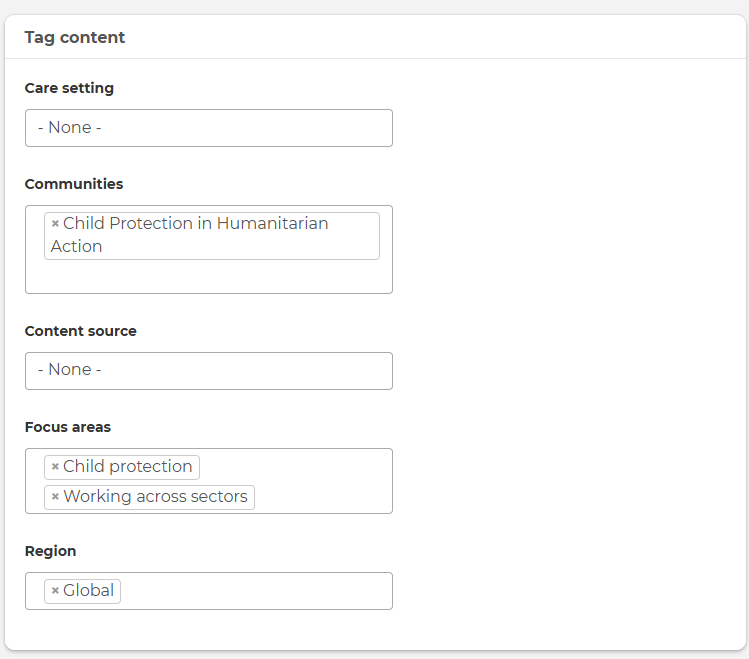
Applying tags to events, topics, and discussions will help others easily find them when searching the resource library. Select the care setting, what community of practice it relates to and if relevant, the focus areas and region. If you want to understand more about searching resources, check our guidance on searching resources.
Important: adding a 'community tag' will not automatically publish that content to that community; rather, it will identify that your topic is of interest to its members. If you want to publish your topic to a specific community, choose the respective group in the group's dropdown list.
Additional information - organisers
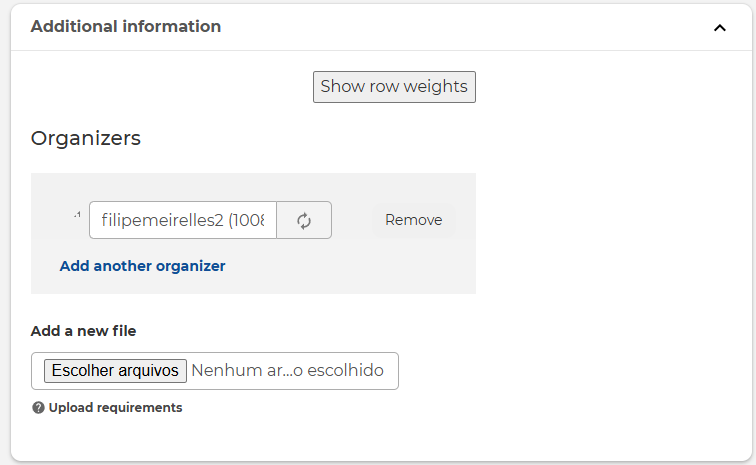
Expand the 'additional information' box to include information on event organisers. These must be members of the Changemakers for Children platform. This is useful if you want people to learn more about the organisers and contact them. Once your event is published, the list of organisers will display next to the event description and on the 'Organisers' tab.
Publishing your event
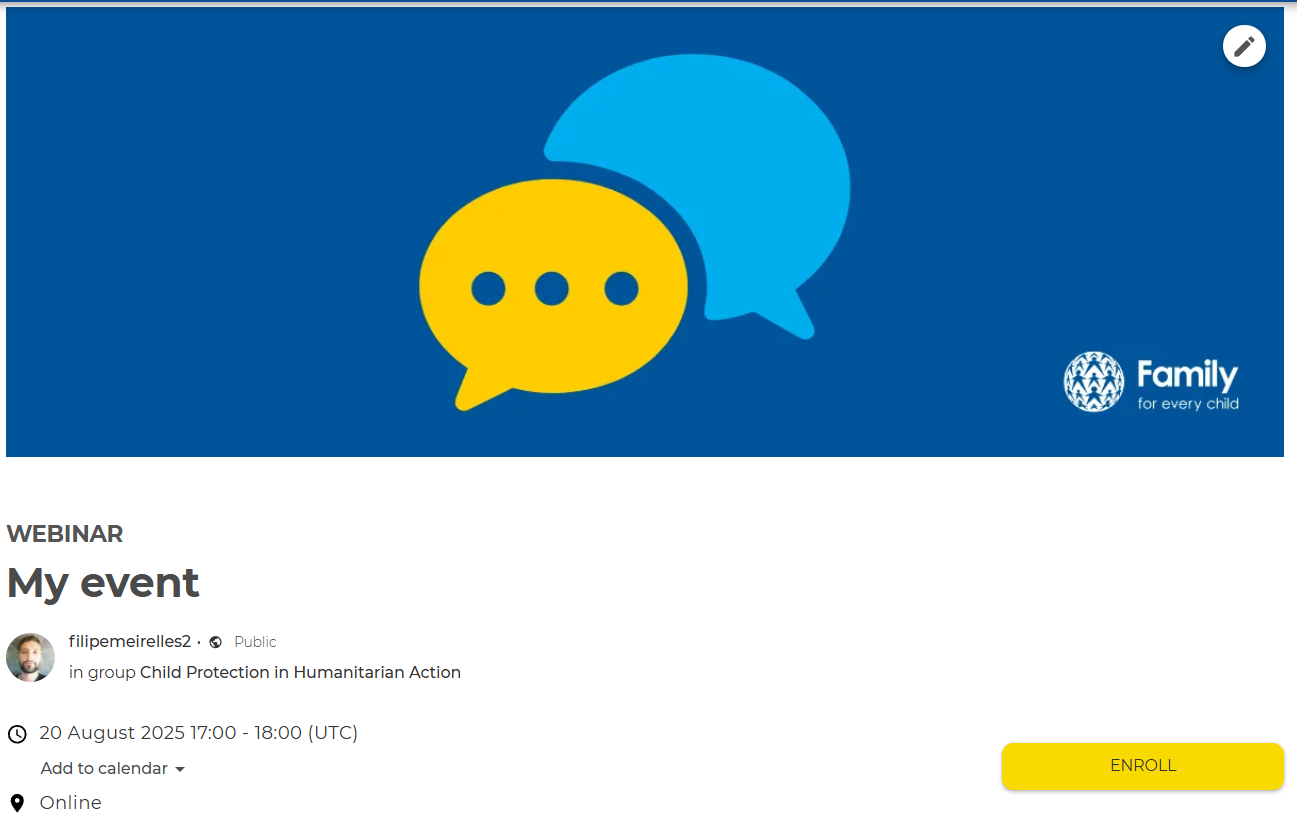
Click 'Save' to publish your event. Once published, you can edit your event as much as you wish by clicking on the pencil icon at the top right. The published event will display on the platform's main feed and you can always find it in the 'Events' tab on your profile.
Managing enrolments and sending invites
A yellow button will display under the event date and time if the event enrollment option is enabled. Click 'Manage enrollments' to see a list of enrollees.
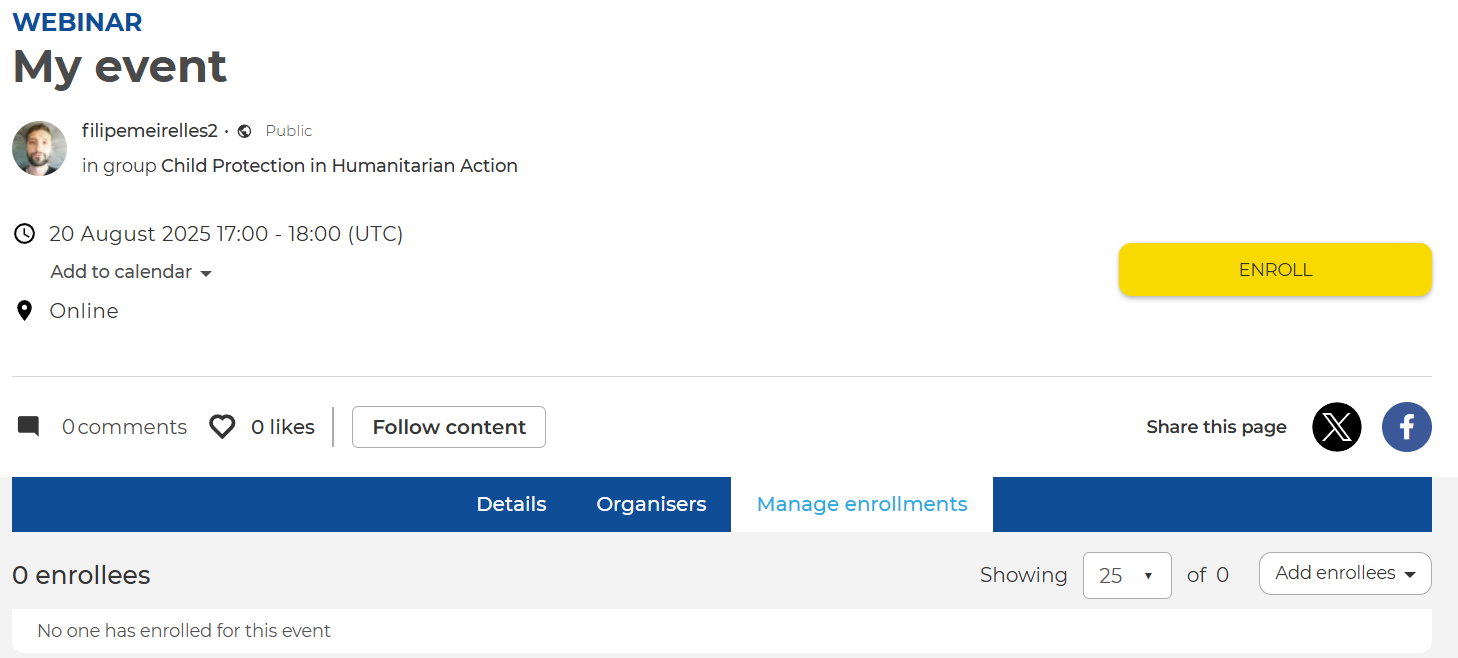
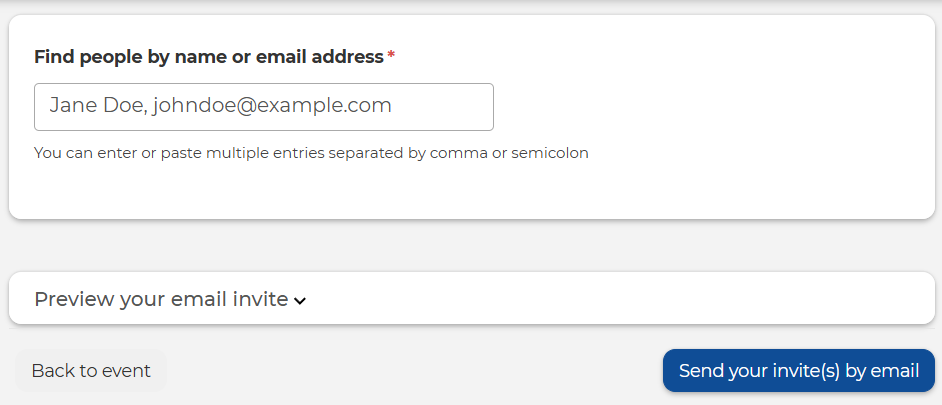
You can add enrollees to your event directly or send invites by clicking on 'Add enrollees'. We recommend you only add members directly if you are sure they will join your event or if they are having issues enrolling. You can invite several members at once. To invite people to your event, add their Changemakers usernames or email addresses to the textbox, separated by a comma. Each invitee will receive an individual email notification.
Emailing enrollees
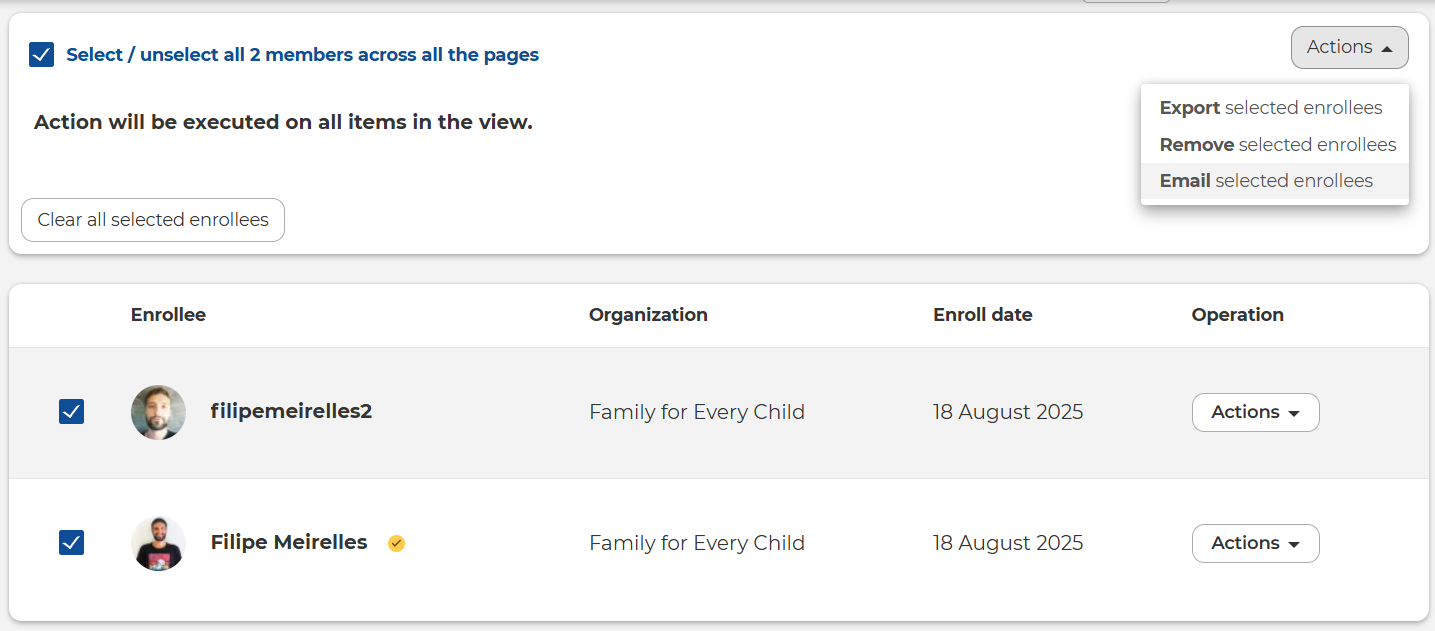
You might want to communicate with the enrollees before or after the event. For example, you might want to share a link to a webinar, the event recording, or any useful information. To do so, select the members you want to communicate with by checking the boxes next to their names, or select all members at once by clicking on 'Select/unselect all members across all the pages'. Then click 'Actions' and select 'Email selected enrollees'.
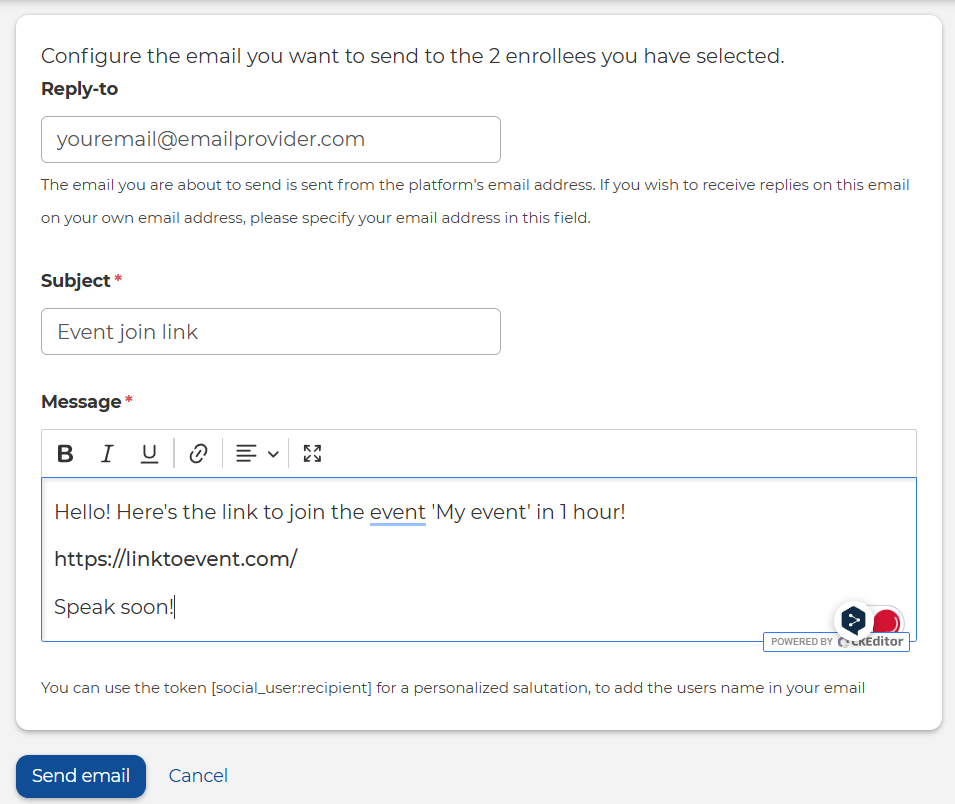
Configure your email message accordingly, and click 'Send email' when ready. Each enrollee will receive an individual email.
Let us know if you have any questions about creating events by commenting below!