


Why should I create discussions?
Changemakers for Children is a place to access and share knowledge. We want to build a strong, collaborative database full of knowledge, including resources, interesting stories and discussions, to support child rights professionals globally.
While posts eventually disappear on the stream, discussions are searchable throughout the platform and included in the resource library. You can add attachments, images, and online videos to your discussion and apply tags to help organise it in the resource library. Use posts only for quick communication, to ask questions, and to send reminders to other members.
Starting a discussion
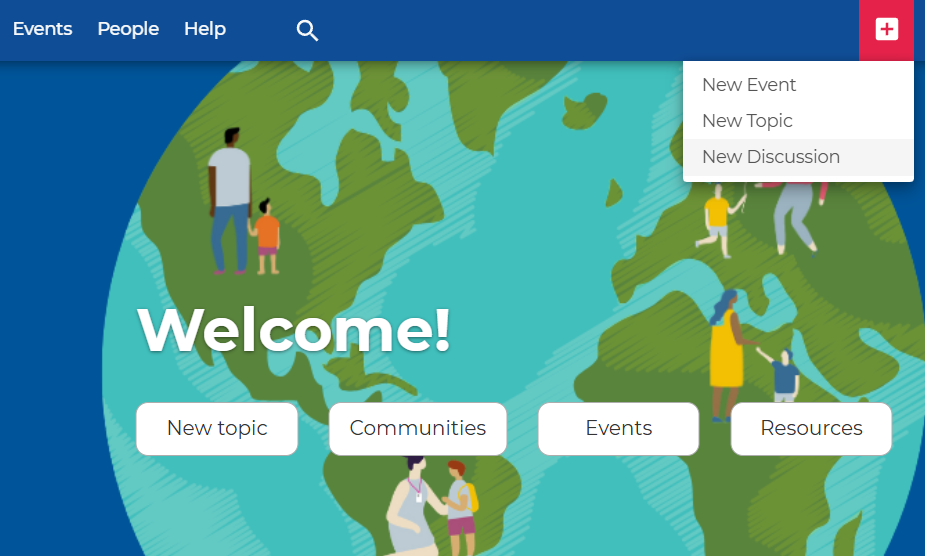
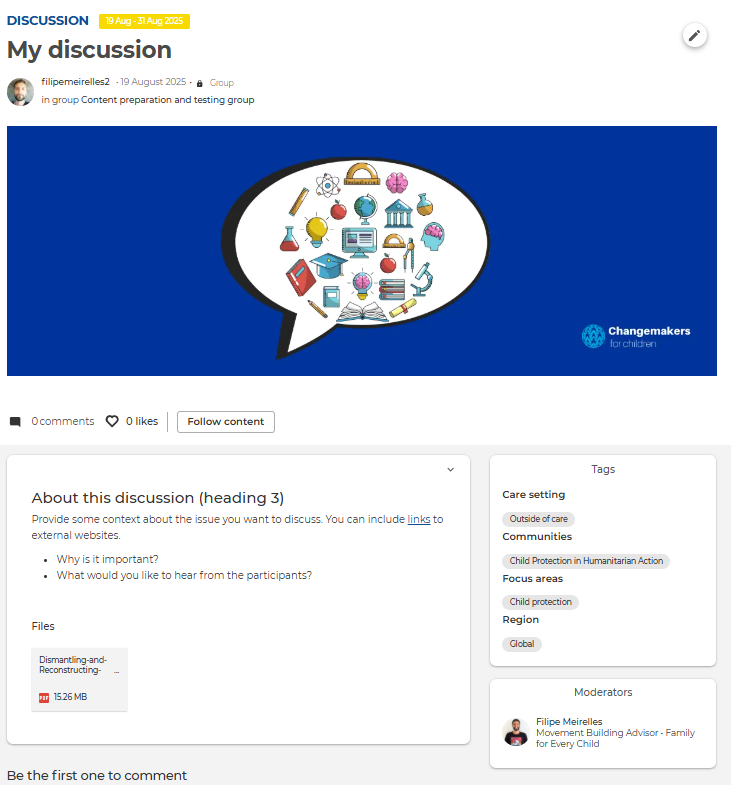
Creating discussions is similar to creating topics. Click '+' and 'New Discussion'. You will be redirected to a new page. Adding a title to your discussion is required.

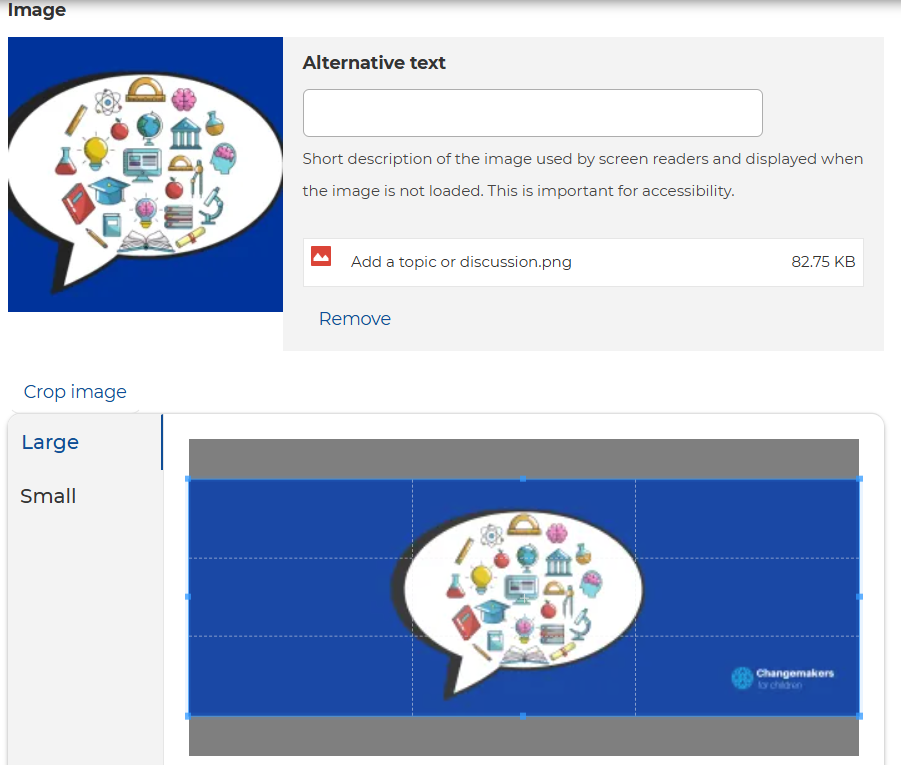
You can add a banner image to your discussion, but that's optional. The recommended resolution for banner images is 1200 x 423 or higher. If you choose an image with a different format, the platform will automatically crop the image. You can adjust the image cropping as you wish.
Adding a description
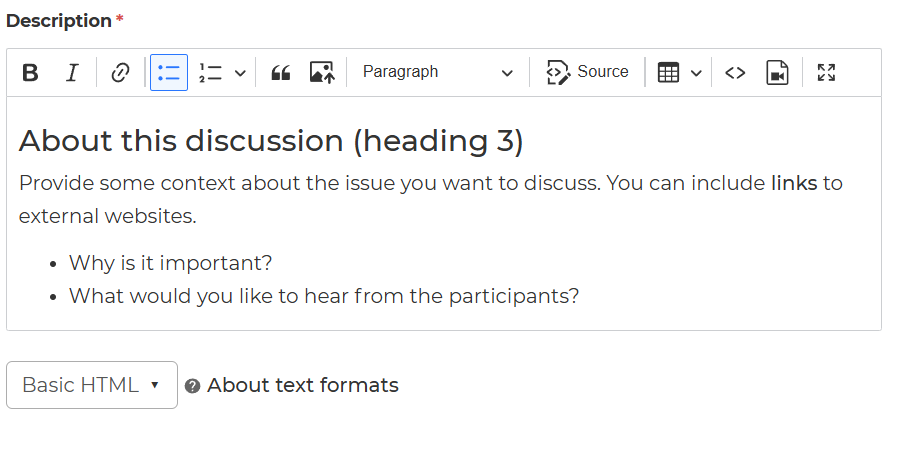
Adding a description is mandatory. You can include all the details about your discussion, upload images, embed videos and share links to external websites. The text editor allows you to choose different text formats and styles.
Adding your discussion to a group
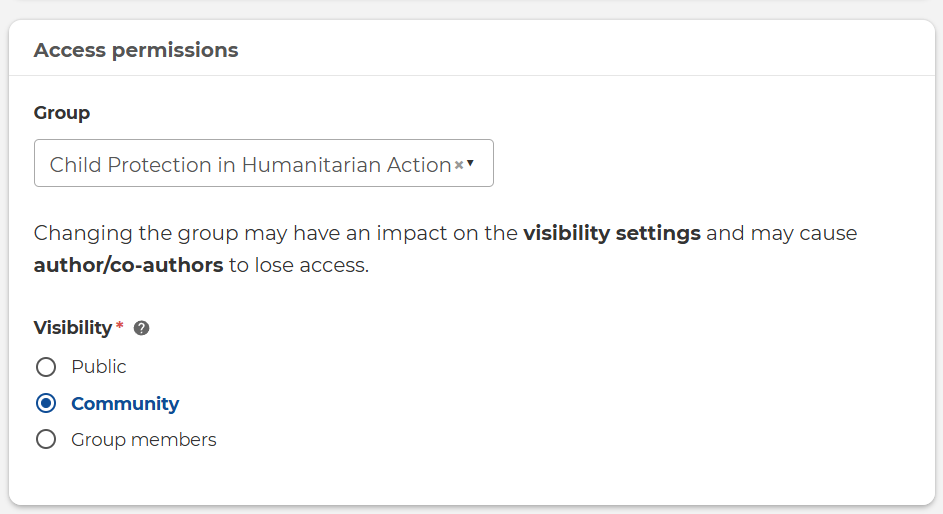
Whenever possible, add your discussion to a group. This will notify the members of that group. If you don't add your discussion to a group, members won't get a notification, but your discussion will still appear on the platform's main feed and the resource library.
Please note that each group has its own particular visibility settings. If you choose 'Community' as a visibility setting, your discussion will be visible outside that group. If you select 'Public', your discussion page will be visible to visitors who don't have a Changemakers account, and you will be able to share that page externally. However, only those logged-in visitors can read and write comments.
Additional information - dates, moderators and attachments
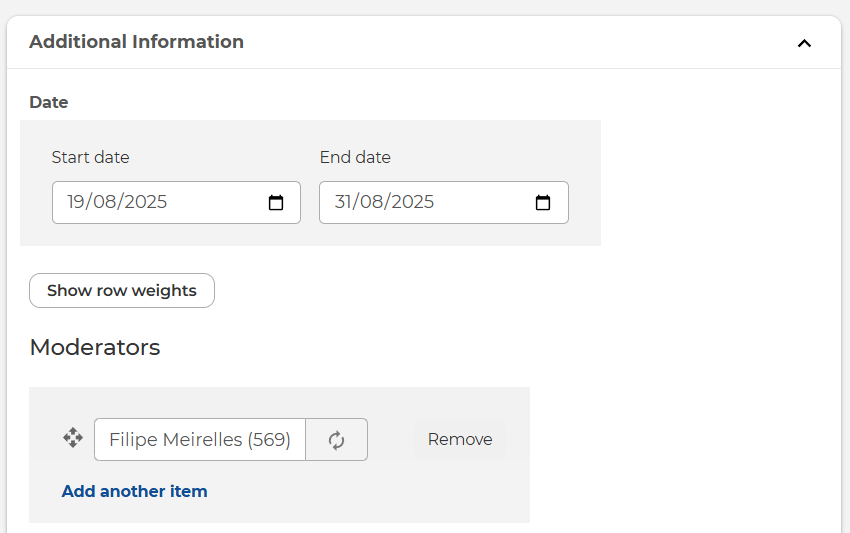
Adding start and end dates to your discussion is optional. If the discussion reaches an expiration date, members will no longer be able to comment on it.
Adding moderators is also optional. Moderators will receive a notification whenever there is activity in the discussion (e.g. likes and comments), and can edit or delete comments.
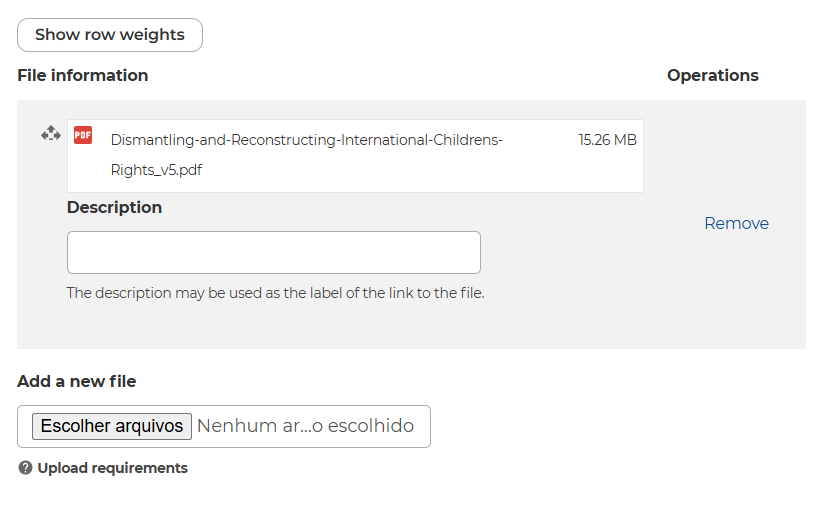
You can also upload documents to your discussion page.
Settings
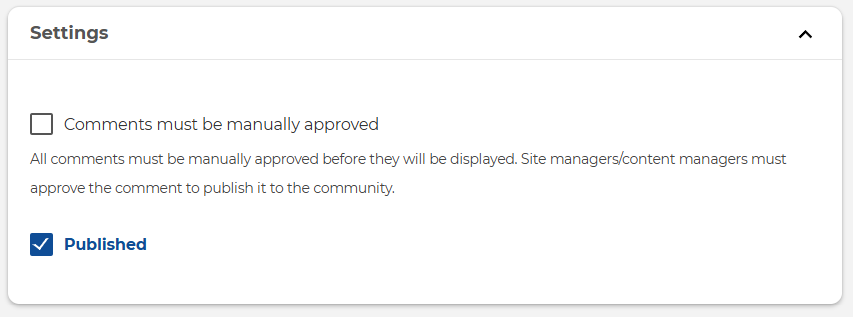
In the 'settings' box, you'll find the options to approve comments manually and the 'Published' checkbox. We recommend keeping the 'Comments must be manually approved' checkbox unselected, and the 'Published' checkbox selected. If you uncheck the 'Published' box, you won't be able to view the content you created as only site administrators can access unpublished content.
Tags
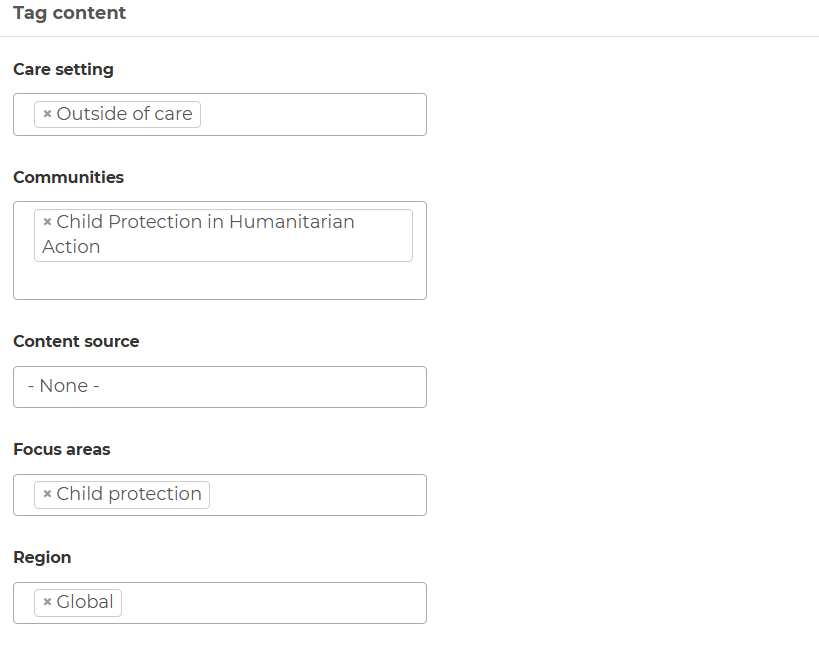
Applying tags to events, topics, and discussions will help others easily find them when searching the resource library. Select the care setting, what community of practice it relates to and if relevant, the focus areas and region. If you want to understand more about searching resources, check our guidance on searching resources.
Important: adding a 'community tag' will not automatically publish that content to that community; rather, it will identify that your topic is of interest to its members. If you want to publish your topic to a specific community, choose the respective group in the group's dropdown list.
Publishing your discussion
Click 'Save' to publish your discussion. Once published, you can edit your discussion as much as you wish by clicking on the pencil icon at the top right. The published discussion will display on the platform's main feed and you can always find it in the 'Discussions' tab on your profile page.
Commenting in discussions
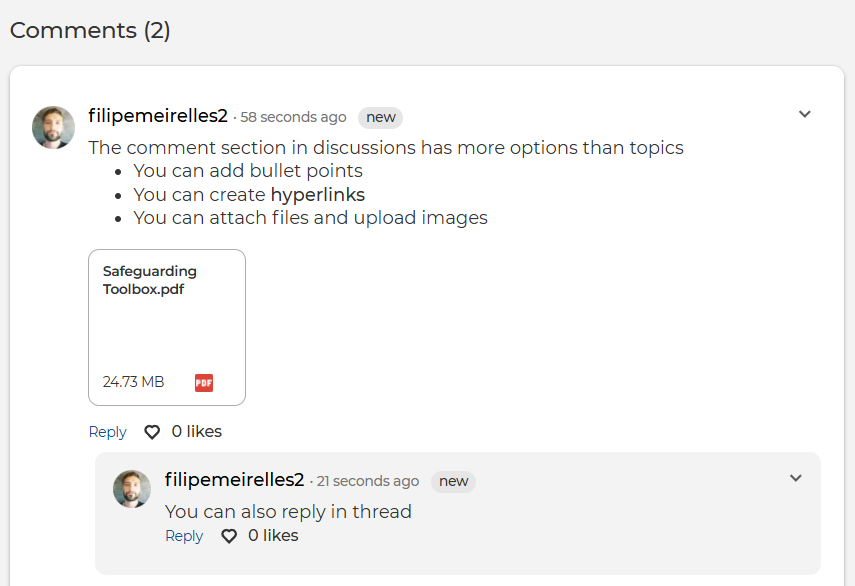
The comment section of discussions has a more complete text editor, which allows you to add bullet points, create hyperlinks and attach files and images. It's also possible to reply to comments in a thread, which helps organise the conversation flow.
Let us know by commenting below if you have any questions about creating discussions!